
Key Takeaways
- To turn a video into a podcast, you extract the audio from your video, edit it into a clean recording, and upload the file to a podcast host that feeds it to apps like Spotify and Apple Podcasts. The whole process takes seven steps.
- You don’t need a studio, costly gear, or any coding. Almost any interview, webinar, or talking-head video with clear speech can become an episode, often using free software like Audacity and a free host like Spotify for Podcasters.
- Start by picking a video where the talking carries the message, extract the audio at high quality, then clean it up. That cleanup step, trimming dead air, cutting filler, and evening out volume has the biggest effect on how polished the episode feels.
- Finish by adding a short intro and outro, exporting as an MP3 (around 128 kbps for voice), writing a clear title and show notes, and submitting your RSS feed once to each directory. After approval, future episodes appear automatically.
- If you want to go beyond videos and podcasts, AmpiFire can turn one buyer-intent topic into 8 unique content formats, then automatically publish them across 300+ high-authority sites so more potential customers discover your brand wherever they research before buying.
Why Should You Turn a Video into a Podcast?
Millions of people now consume podcasts as part of their daily routine while driving, exercising, or doing household tasks, giving creators a way to reach audiences even when they are away from a screen. Podcasting is also growing rapidly, with 55% of Americans aged 12+ listening to a podcast every month in 2025, the highest level ever recorded.
Turning your existing videos into podcast episodes lets you reuse content you’ve already created instead of recording everything from scratch. It helps you reach people who prefer listening over watching, gets more value from every video you create, and gives your audience another convenient way to consume your content without creating an entirely new production.
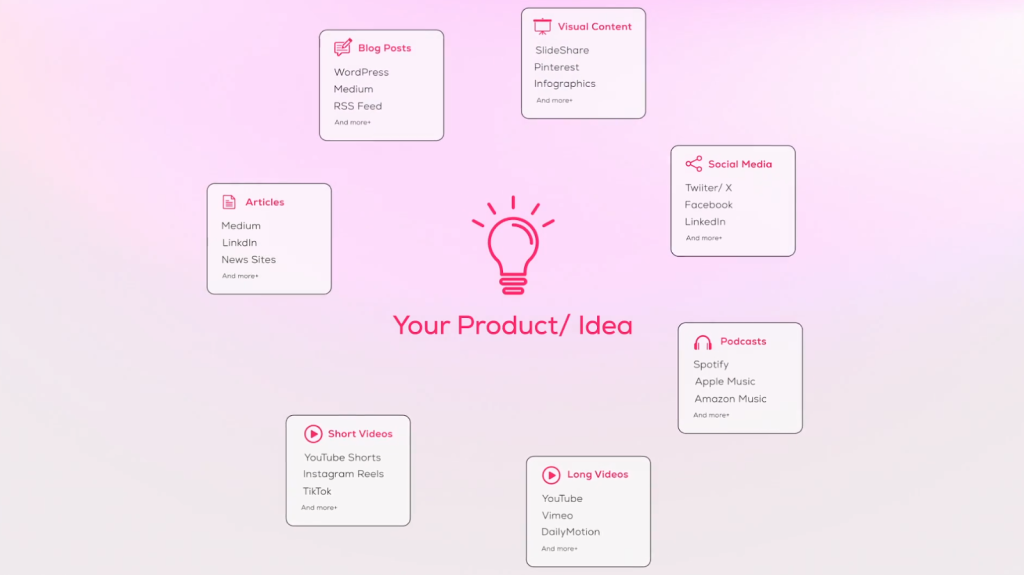
While turning a video into a podcast is a smart first step, today’s buyers rarely rely on a single channel when researching a product or service. Repurposing that same topic into multiple content formats and distributing them across different platforms using AmpiFire helps more potential customers discover your brand wherever they prefer to search, watch, read, or listen.

How AmpiFire Works:
- Research & Target: Find high-demand topics your buyers search for.
- Create & Repurpose: AmpiFire’s AmpCast AI generates news articles, blog posts, interview podcasts, longer informational videos, reels/shorts, infographics, flipbooks/slideshows, and social posts.
- Distribute & Amplify: Auto-publish to 300+ sites, including Google News, YouTube, Spotify, and major news networks.
Get more traffic from people who want to buy your stuff, and powerful “As Seen On” trust badges for your site.
Do It Yourself (with AI), Done For You Content, & 100% Managed Organic Growth options available.
Grow Your Free Traffic From Everywhere
How to Turn a Video Into a Podcast?
Here is the full process, one step at a time. Work through them in order, and by the last step, your episode will be live on the major podcast apps.
Step 1: Choose a Good Quality Video
Not every video makes a good podcast, so start by picking one where the talking carries the message. Interviews, webinars, panel discussions, coaching calls, and Q&A sessions all translate well because a listener can follow them with no picture at all.
Videos that depend on the screen are harder to convert. A product demo, a slide deck, or a tutorial full of “click here” moments will confuse someone who can only hear it. If you want to use a video like that, record a short spoken intro that explains what people would otherwise see, or edit the visual-only parts out before you move on.
A quick test helps here. Play the video with your eyes closed, and if you still understand it, it will work as a podcast episode.

Step 2: Extract the Audio From Your Video
The next step is to separate the sound from the picture, leaving you with a standalone audio file you can edit and publish. There are two easy ways to do this.
Open the video in an editor like Audacity, GarageBand, or Descript and export the audio track, or drop the file into a free online MP4-to-MP3 converter for a one-off job. Editors give you more control over the result, while converters are faster when you only need the audio pulled out and nothing else.
Save this first export at the highest quality your tool allows, such as WAV or 320 kbps MP3. Editing a high-quality file keeps the sound clean, and you can always compress it later when you export the final episode.
Step 3: Clean Up the Podcast Audio
Raw audio taken from a video almost always needs tidying before it sounds like a real podcast. This single step has the biggest effect on how polished your episode feels to a listener.
Start by trimming the dead air at the front and back, then cut long pauses, false starts, and repeated filler words like “um” and “you know.” Use your editor’s noise reduction tool to remove steady background sounds such as fan hum, traffic, or air conditioning.
Finish by evening out the volume so that quiet and loud moments sit at a similar level. If two speakers were recorded at different volumes in the original video, balance them now so nobody has to keep adjusting the volume while they listen.
Step 4: Add a Podcast Intro & Outro
An intro and outro turn a bare recording into a proper episode, and they tell first-time listeners who you are and what to expect. Both should be short and to the point.
For the intro, record a quick line with the show name, the episode title, and a one-sentence preview of the topic. A few seconds of light background music underneath sets the tone, and free royalty-free music libraries give you tracks you can use without paying anything.
For the outro, thank the listener and give one clear next step, such as following the show or visiting your website. Keep each one to about ten or twenty seconds, since long intros are one of the fastest ways to lose a new listener.
Step 5: Export the Episode as an MP3
Once the audio is edited, export the finished episode as an MP3. This is the format every podcast app expects, and it keeps file sizes small enough to download and stream quickly.
For spoken audio, a bitrate of around 128 kbps gives you clear voices without a bloated file. That balance matters because large episodes load slowly and use up more of a listener’s phone data than they need to.
Before you export, give the file a sensible name and double-check its length so you know nothing was cut off. Save it somewhere easy to find, since this is the exact file you will upload in the final step.
Step 6: Write the Podcast Title & Show Notes
Every episode needs a title and show notes, and both do more work than people expect. They are how listeners decide if they will press play, and how apps match your episode to what people search for.
Write a clear, specific title that says what the episode covers instead of a vague one-word label. Then write your show notes: a short paragraph summarizing the episode, a few bullet points marking the key moments, and any links you mentioned while recording.
Adding a full transcript is optional but worth the effort. It makes the episode readable for people who prefer text, and it gives search engines more content to index, which helps new listeners find your show.

Step 7: Upload & Submit Your Podcast to Directories
The last step is getting your episode onto the apps where people actually listen. Upload the MP3 and show notes to a podcast host such as Buzzsprout, Podbean, or the free Spotify for Podcasters.
Your host then creates an RSS feed, which is the link that carries your show to listening apps. Submit that feed one time to each directory you want, including Apple Podcasts through Apple Podcasts Connect and Spotify through Spotify for Podcasters. Most other apps pull their listings from these two, so a couple of submissions cover the majority of listeners.
After each app approves your show, the setup is done for good. Every future episode you upload to your host appears in all of those apps automatically, with no extra submission needed on your end.
Turn One Video Into a Podcast and More With AmpiFire
Turning a video into a podcast comes down to saving the audio, cleaning it up, and getting it onto the apps where people listen. With free software and a free host, you can publish a first episode in an afternoon, and each new one goes faster once you settle into a routine. The problem is that turning one video into a podcast only gives you a presence on a single channel, while most buyers check several places, including search, social feeds, video, and audio, before they decide to buy.
At AmpiFire, we support that research stage by identifying the high-demand topics your audience is already searching for, then using AmpCast AI to create 8 content formats (e.g., news articles, blog posts, interview podcasts, longer informational videos, reels/shorts, infographics, flipbooks/slideshows, and social posts). We then automatically publish them across 300+ sites, including Spotify, Apple Podcasts, YouTube, Vimeo, Google News, and other major platforms, so more people become familiar with your brand before they make a purchase. If you want a podcast and supporting content created and distributed for you, try AmpCast AI today.
Frequently Asked Questions (FAQs)
Can I turn any video into a podcast?
Most videos work as long as the audio makes sense on its own. Interviews, webinars, and talking-head clips convert best because the words carry the message. Videos that rely on charts or screen demos need a short spoken summary, so listeners do not miss the key points that were once visual.
Do I need special software to convert video to audio?
No. Free tools like Audacity or GarageBand can pull out and edit the audio, and a free online MP4-to-MP3 converter handles quick jobs. Paid tools such as Descript speed up editing and add transcripts, but they are optional for a basic episode that plays anywhere.
What is the best file format for podcasts?
MP3 is the standard format for podcasts because it plays on every app and keeps file sizes small. Export spoken audio at around 128 kbps for a good balance of sound quality and size. Most hosting platforms accept MP3 uploads directly, so you rarely need to change anything after export.
How do I get my podcast on Spotify and Apple?
Upload your episode to a podcast host, then submit your show’s feed once to each app through Spotify for Podcasters and Apple Podcasts Connect. After each app approves your show, every new episode you publish appears in them automatically. You only complete the submission step one time per app.
How can AmpiFire help me create and share podcasts?
AmpiFire’s AmpCast AI platform turns one topic into 8 unique content formats before auto-publishing them across 300+ sites, including Spotify, Apple Podcasts, YouTube, and Google News. This way, a single idea reaches people across audio, video, search, and social channels.
*Disclaimer: Results may vary based on individual circumstances, business type, and content strategy. The time savings and outcomes mentioned are based on typical user experiences and are not guaranteed. For specific pricing and service details, please visit AmpiFire.
Author
Related Posts

How to Turn Article into Podcast: Step-by-Step Guide & Tips
Learn how to turn articles into podcasts with AI tools, voice generation, and distribution strategies to reach audio-first audiences.


How to Turn a YouTube Video Into a Blog Post: Step-by-Step Guide
Learn how to turn a YouTube video into a blog post with our step-by-step guide. Discover easy tips to repurpose…

How to Turn Article into Video: Step-by-Step Guide & Tips
Learn how to turn articles into videos step-by-step. Compare AI tools vs manual methods for converting written content into engaging…
How to Turn a Blog Into an Infographic: Step-by-Step Guide
Learn how to turn a blog into an infographic with our step-by-step guide. Repurpose content into engaging visuals that boost…
How to Turn Your Podcast Into a Blog Post: 7 Easy Steps
Learn how to turn your podcast into a blog post with 7 easy steps. Repurpose audio content to reach more…


How to Use ChatGPT to Add Internal Links to Content, Blogs & Articles: Step-by-Step Guide
Streamline internal links in your content with ChatGPT's versatile roles, from Idea Generator to SEO Metric Analyst and boost your…