

Key Takeaways
- A GTIN is a unique product identifier required by Amazon, Google Shopping, Walmart, and most major marketplaces. Each product variation needs its own number.
- GTIN-12 (UPC) is the standard in the US and Canada, while GTIN-13 (EAN) is used globally and is the best choice for brands selling internationally.
- Always purchase GTINs directly from GS1 or an authorized service partner; third-party resellers sell recycled codes, which can result in listings being suppressed or removed.
- Proper GTIN setup in Shopify, Google Merchant Center, and schema markup improves product visibility, click-through rates, and eligibility for rich results.
- AmpiFire’s AmpCast AI helps ecommerce brands amplify their optimized product content across 300+ high-authority platforms to drive organic traffic and build buyer trust.
GTIN Types, Purchasing, and Setup for E-commerce Brands
A GTIN (Global Trade Item Number) is a unique product identifier required by Amazon, Google Shopping, Walmart, and most major marketplaces. Every product variation, whether by size, color, or bundle quantity, needs its own GTIN.
The two most common formats are GTIN-12 (UPC), standard in the US and Canada, and GTIN-13 (EAN), used internationally. EAN-13 barcodes work everywhere, including North America, making them the more flexible option for brands selling across borders.
GTINs should only be purchased from GS1 or an authorized service partner. Third-party resellers sell recycled codes that lead to listing suppression, lost reviews, and account suspension.
Once purchased, GTINs need to be correctly entered in your store platform and product feeds to ensure marketplace approval and search visibility.

How AmpiFire Works:
- Research & Target: Find high-demand topics your buyers search for.
- Create & Repurpose: AmpiFire’s AmpCast AI generates news articles, blog posts, interview podcasts, longer informational videos, reels/shorts, infographics, flipbooks/slideshows, and social posts.
- Distribute & Amplify: Auto-publish to 300+ sites, including Google News, YouTube, Spotify, and major news networks.
Get more traffic from people who want to buy your stuff, and powerful “As Seen On” trust badges for your site.
Do It Yourself (with AI), Done For You Content, & 100% Managed Organic Growth options available.
Grow Your Free Traffic From Everywhere
What Is a GTIN & Why Your Brand Needs One
A GTIN (Global Trade Item Number) is a unique numerical identifier assigned to a product. It is the number encoded inside UPC barcodes, EAN barcodes, and other standard product identifiers. Every product you sell – and every variation of that product (size, color, bundle quantity) – needs its own GTIN.
GTINs come in several formats:
| Type | Digits | Common Use |
| GTIN-12 (UPC) | 12 | Standard for products in the US and Canada |
| GTIN-13 (EAN) | 13 | Standard for products in Europe and globally |
| GTIN-14 | 14 | Used for cases, pallets, and multi-packs |
| GTIN-8 | 8 | Small items where space is limited |
Why it matters: Amazon, Google Shopping, Walmart, Target, and hundreds of other marketplaces and retailers require valid GTINs. Google verifies GTINs against the GS1 database. If your number does not match, your product listings can be disapproved, suppressed, or removed entirely. Products with valid GTINs also receive better placement in Google Shopping results and higher click-through rates.
Which GTIN Format Do You Need? A Country-by-Country Guide
The GTIN format you use depends on where you sell. Pick the wrong one and your barcodes will not scan at retail, or your marketplace listings will be rejected. Here is a simple breakdown.
If You Sell Only in the US & Canada
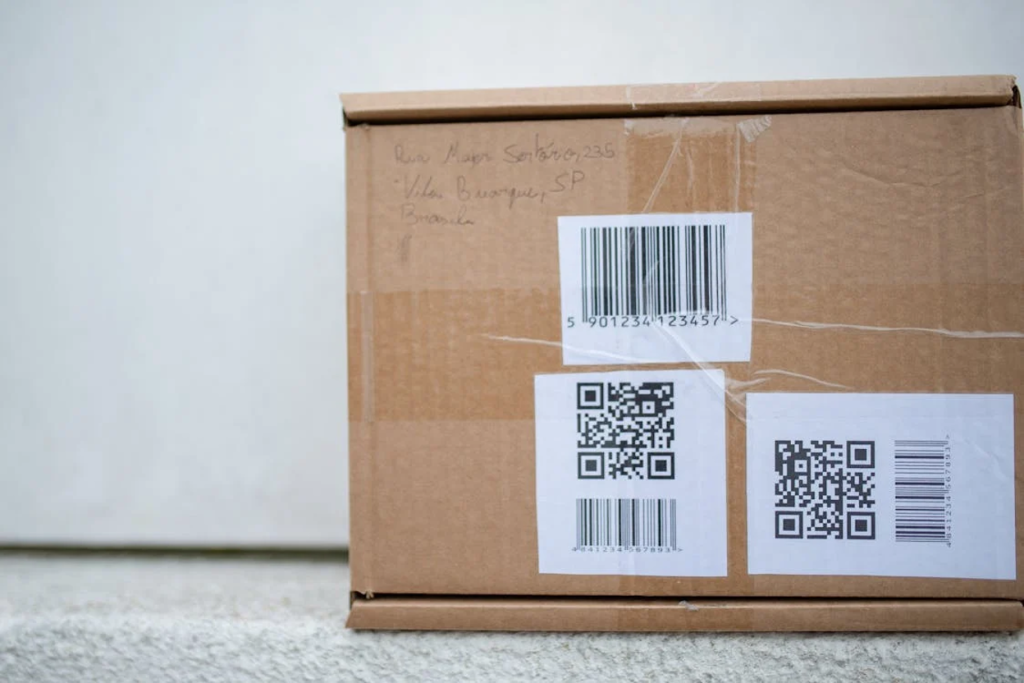
Use UPC (GTIN-12). This is the 12-digit barcode you see on nearly every product in North American stores. Register with GS1 US (gs1us.org) to get your numbers.
If You Sell in Europe, Asia, Australia, South America, or Africa
Use EAN (GTIN-13). This is the 13-digit international standard. Register with your local GS1 office. Visit gs1.org and select your country to find the right office.
If You Sell Internationally (Including the US)
Use EAN (GTIN-13). Here is the key insight most people miss: EAN-13 barcodes work everywhere, including the US and Canada. All modern scanners and point-of-sale systems read both UPC and EAN. If you sell across borders, EAN-13 is the most flexible choice because it is accepted globally.
UPC-12 barcodes, on the other hand, are only standard in the US and Canada. While they can technically be converted to EAN-13 by adding a leading zero, starting with EAN-13 avoids confusion.
Country-by-Country Quick Reference
| Region | Format | Register With |
| United States & Canada | UPC (GTIN-12) | GS1 US – gs1us.org |
| United Kingdom | EAN (GTIN-13) | GS1 UK – gs1uk.org |
| EU (Germany, France, etc.) | EAN (GTIN-13) | Local GS1 office per country |
| Australia & New Zealand | EAN (GTIN-13) | GS1 Australia – gs1au.org |
| Japan | JAN (GTIN-13) | GS1 Japan – gs1jp.org |
| India | EAN (GTIN-13) | GS1 India – gs1india.org |
| China | EAN (GTIN-13) | GS1 China – ancc.org.cn |
| International / Multi-Region | EAN (GTIN-13) | Any GS1 office (works globally) |
For cases, pallets, and wholesale shipping: Use GTIN-14 (ITF-14 barcode). This 14-digit code is built from your existing UPC or EAN by adding an indicator digit at the front. Your GS1 membership tools or barcode service partner will generate these for you.
For books: Use ISBN (International Standard Book Number), which is a specialized form of GTIN-13. Get these from your national ISBN agency, not GS1.
The Bottom Line
If your products will ever be sold outside North America, start with EAN-13. It works in every country. If you only sell domestically in the US or Canada and have no plans to go international, UPC-12 is perfectly fine. Either way, you register through GS1 – the only difference is which GS1 office you use and what digit length you receive.
Where to Buy Your GTINs
Option 1: Single GTINs from GS1 US (Best for Small Catalogs)
If you have fewer than 10 products, individual GTINs are the most cost-effective path.
- Cost: $30 per GTIN (one-time fee, no annual renewal)
- Where: store.gs1us.org
- What you get: A unique GTIN licensed to your company, a certificate of proof, and access to GS1 US Data Hub for barcode creation
- Limitations: Cannot be used for regulated healthcare products, pharmaceuticals, coupons, or variable-weight items
Option 2: GS1 Company Prefix (Best for Growing Brands)
If you have 10+ products or plan to grow your catalog, a Company Prefix gives you a block of numbers to create GTINs yourself.
| Capacity | Initial Fee | Annual Renewal |
| Up to 10 products | $250 | $50/year |
| Up to 100 products | $750 | $150/year |
| Up to 1,000 products | $2,500 | $500/year |
| Up to 10,000 products | $5,000 | $1,000/year |
| Up to 100,000 products | $10,500 | $2,100/year |
Where: store.gs1us.org (for US-based companies). For other countries, visit gs1.org and find your local GS1 office.
Pro tip: Count every product variation. A t-shirt in 4 colors and 4 sizes needs 16 GTINs. Plan for at least 2-3 years of growth before choosing your prefix capacity.
Option 3: GS1 Barcode Service Partners
Companies like Bar Code Graphics (barcode.graphics) and Barcode US (barcode-us.com) are authorized GS1 partners. They provide the same legitimate GS1 GTINs along with ready-to-print barcode image files (.eps format) and hands-on support. Pricing starts at $30 per single GTIN, with Company Prefix packages available.
Software & Tools That Make GTIN Management Easy
Managing GTINs across dozens (or hundreds) of product variations does not have to be a spreadsheet nightmare. Several tools handle the heavy lifting: assigning numbers, generating barcodes, syncing to marketplaces, and preventing duplicate or invalid codes.
GS1 US Data Hub (Included Free with Your GS1 Membership)
When you purchase a Company Prefix from GS1 US, you automatically get access to their Data Hub platform at dh.gs1us.org.
What it does:
- Assigns GTINs from your Company Prefix automatically (calculates check digits for you)
- Generates downloadable UPC barcode images (PNG format)
- Stores product data (name, description, brand) alongside each GTIN
- Feeds your data into the Verified by GS1 database so retailers and marketplaces can confirm your barcodes are real
Limitations to know about:
- Only one user account included (additional users start at $1,000)
- Barcode images are low-resolution PNG files, fine for digital use, though not ideal for print packaging (use .eps files from a barcode service partner instead)
- Export functionality is limited unless you purchase the API add-on
- Interface can be confusing for first-time users
Best for: Brands with a GS1 Company Prefix who want a free, centralized place to assign and track their GTINs.
GTIN.cloud (Professional GTIN Management)
Available through Bar Code Graphics and Barcode US, GTIN.cloud is a more robust management portal built specifically for barcode administration.
What it does:
- Assigns and activates GTINs with full product data attributes
- Generates print-ready .eps barcode files (certified by GS1)
- Exports data directly to Google Merchant Center, Amazon, and GS1 Data Hub
- Includes a personal GS1 consultant who validates all product data before publishing
- Multiple user accounts with real-time access
Cost: Included with GS1 Barcode Service subscriptions through barcode-us.com. No additional charge for GTIN.cloud access.
Best for: Brands selling on multiple marketplaces (Amazon, Google Shopping, Walmart) who want expert validation and clean data exports.
Shopify Apps for GTIN Management
If you run a Shopify store, several apps simplify barcode management without leaving your admin panel.
AR: Buy GTINs/UPC/EAN Barcodes
- What it does: Purchase GTIN-13 barcodes directly inside Shopify and auto-assign them to your products. No manual data entry.
- Cost: Free to install. GTINs from $0.01 to $0.28 each, depending on volume.
- Caveat: These are non-brand-registered GTINs. They work for Google Shopping, though they will not work for Amazon, Walmart, or Bol.com, which require brand-registered GS1 barcodes. Use only if you sell exclusively through your own store and Google Shopping.
GS: Barcode Labels & Generator
- What it does: Generates CODE128 barcode labels for all products and variants. Includes bulk generation, label printing templates, and SKU management.
- Cost: Free plan available.
- Best for: Printing physical barcode labels for inventory and POS. Does not create GS1-registered GTINs – you still need those from GS1 first.
Google & YouTube App (by Google)
- What it does: Syncs your Shopify product catalog (including barcodes) directly to Google Merchant Center. Automatically maps the Shopify barcode field to the GTIN attribute in your product feed.
- Cost: Free.
- Best for: Every Shopify store selling on Google Shopping. This is how you get your GTINs from Shopify into Google.
PIM Systems (For Larger Catalogs with 500+ SKUs)
If you manage a large product catalog across multiple sales channels, a Product Information Management (PIM) system centralizes all product data, including GTINs, in one place and syndicates it everywhere.
- Akeneo: Open-source PIM with GTIN field management, multi-channel syndication, and data quality tools. Popular with mid-market and enterprise brands.
- Salsify: Product experience management platform. Manages GTINs alongside images, descriptions, and pricing for distribution to Amazon, Walmart, Target, and hundreds of retailers.
- Plytix: Budget-friendly PIM built for small to mid-sized ecommerce brands. Handles GTIN storage and product feed exports.
Best for: Brands with large catalogs selling across many channels who need one source of truth for all product data, including GTINs, images, pricing, and descriptions.
Which Tool Should You Pick?
| Your Situation | Recommended Tool | Cost |
| Under 10 products, Shopify only | GS1 single GTINs + Google & YouTube app | $30 per GTIN (one-time) |
| 10-100 products, Shopify + Google | GS1 Company Prefix + Data Hub + Google & YouTube app | $250-$750 initial + renewal |
| Selling on Amazon + Google + own store | GS1 Company Prefix + GTIN.cloud | From $250 + service fee |
| 500+ SKUs, multi-channel | GS1 Company Prefix + PIM system (Akeneo, Salsify, or Plytix) | $750+ for GS1, varies for PIM |
7 Costly GTIN Mistakes to Avoid
- Buying from third-party barcode resellers is the most damaging mistake. Cheap resellers sell recycled or fabricated UPCs not licensed to your brand. When marketplaces detect a mismatch, listings are suppressed, reviews are lost, and seller accounts are suspended. A $30 legitimate GTIN protects thousands of dollars in sales.
- Reusing the same GTIN across variations causes catalog errors. Every unique size, color, flavor, and pack quantity requires its own number.
- Letting your Company Prefix expire means your products disappear from the GS1 database.
- Entering the wrong number format (selecting UPC when your barcode is a 13-digit EAN) triggers automatic rejection on Amazon.
- Mismatched brand names between GS1 and marketplace accounts cause verification failures, even for small differences.
- Using a manufacturer’s GTIN for custom bundles violates listing policies; bundles need their own GTINs.
- Finally, failing to verify your GTIN before listing is an avoidable error. Check at gepir.gs1.org before going live on any marketplace.
Setting Up GTINs in Shopify

Adding a GTIN to a Single Product
- Log into your Shopify admin panel
- Go to Products in the left sidebar
- Click the product you want to update
- Scroll down to the Inventory section
- Find the Barcode (ISBN, UPC, GTIN, etc.) field
- Enter the full GTIN number exactly as provided by GS1
- Click Save
For products with variants: Each variant (size, color, etc.) has its own barcode field. Click into each variant and enter its unique GTIN individually.
Adding GTINs in Bulk
For stores with large catalogs, use one of these two methods:
Method A: Bulk Editor
- Go to Products > All Products
- Select the products you want to edit (use checkboxes)
- Click Bulk edit
- Click Add fields, then select Inventory > Barcode
- Enter GTINs for each product in the barcode column
- Click Save
Method B: CSV Import
- Go to Products > All Products > Export
- Open the downloaded CSV file in Excel or Google Sheets
- Find the Variant Barcode column
- Enter GTINs in the corresponding rows for each product/variant
- Save the CSV file
- Return to Shopify: Products > Import and upload the updated file
Connecting to Google Shopping via Shopify
- Install the Google & YouTube app from the Shopify App Store
- Connect your Google Merchant Center account (create one at merchants.google.com if you do not have one)
- Sync your product feed – the app automatically maps the Shopify barcode field to the GTIN attribute in Google Merchant Center
- Verify your products are approved in Google Merchant Center under Products > Diagnostics
Fixing “You need to add a GTIN or MPN” errors: If Google flags products for missing GTINs, go to the product in Shopify, click More Actions > Google Fields, and confirm the GTIN is applied. If you sell custom or handmade products with no manufacturer barcode, mark the product as “Custom product” in the Google fields section.
Setting Up GTINs in Google Merchant Center
Why Google Cares About Your GTIN
Google uses GTINs to match your products with its global product catalog. When it finds a match, Google can pull in specifications, reviews, and pricing data – giving your listing richer information and better placement. Products with valid GTINs typically see higher click-through rates and lower cost-per-click in Google Shopping campaigns.
Without a GTIN, your products may still be listed, though they are ineligible for enhanced merchant listing experiences and may rank lower against competitors who have them.
Adding GTINs to Your Product Feed
If you use the Shopify Google & YouTube app, GTINs from the barcode field are sent automatically. For manual feeds or supplemental feeds:
- Use the gtin attribute in your feed (accepts GTIN-8, GTIN-12, GTIN-13, or GTIN-14)
- Provide the brand attribute alongside the GTIN
- If a product has no GTIN, provide mpn (Manufacturer Part Number) plus brand as a fallback
- Never use fake or placeholder GTINs – Google checks against GS1 and will disapprove or suspend your account
GTIN Validation Checklist for Google
- Correct digit count (8, 12, 13, or 14 digits)
- Valid check digit (use the GS1 check digit calculator at gs1.org)
- Matches the actual product (not a different product or variation)
- Registered in the GS1 database under your brand
- One unique GTIN per product variant
Adding GTIN Schema Markup to Your Product Pages
Structured data markup tells search engines exactly what your product page contains. A product schema with a valid GTIN enables rich results in Google Search, showing price, availability, and ratings. Google recommends JSON-LD format for structured data. It sits in the page head, separate from your visual HTML, and is straightforward to maintain.
Basic Product Schema with GTIN
Here is a complete JSON-LD example to add to the <head> of each product page:
{
“@context”: “https://schema.org”,
“@type”: “Product”,
“name”: “Premium Resistance Bands Set”,
“image”: “https://yoursite.com/images/bands-main.jpg”,
“description”: “Set of 5 resistance bands…”,
“sku”: “RB-SET-005”,
“gtin13”: “0123456789012”,
“brand”: {
“@type”: “Brand”,
“name”: “YourBrandName”
},
“offers”: {
“@type”: “Offer”,
“url”: “https://yoursite.com/resistance-bands”,
“priceCurrency”: “USD”,
“price”: “39.99”,
“availability”: “https://schema.org/InStock”,
“itemCondition”: “https://schema.org/NewCondition”
}
}
Schema Properties to Include
| Property | Status | Notes |
| name | Required | Product name |
| image | Required | Main product image URL |
| gtin / gtin13 / gtin12 | Strongly recommended | Use gtin13 for EAN, gtin12 for UPC. Enables enhanced listings |
| sku | Recommended | Your internal SKU; helps Google match to Merchant Center feed |
| brand | Recommended | Nested Brand object with name |
| offers | Required for merchant listings | Include price, currency, availability, and itemCondition |
| aggregateRating | Recommended | Product reviews and star ratings |
| description | Recommended | Plain text product description |
Schema for Product Variants
If your product has multiple variants (sizes, colors), use the ProductGroup schema to group them:
{
“@context”: “https://schema.org”,
“@type”: “ProductGroup”,
“name”: “Classic Running Shoe”,
“productGroupID”: “shoe-classic-001”,
“variesBy”: [“https://schema.org/size”,
“https://schema.org/color”],
“hasVariant”: [
{
“@type”: “Product”,
“name”: “Classic Running Shoe – Black – Size 10”,
“gtin13”: “0123456789012”,
“color”: “Black”,
“size”: “10”,
“offers”: { … }
}
]
}
Implementing Schema in Shopify
Most Shopify themes include basic product schema automatically. To add GTIN schema specifically:
- Go to Online Store > Themes > Edit Code
- Open your product template file (typically sections/main-product.liquid or templates/product.liquid)
- Locate the existing JSON-LD schema block (search for “schema.org”)
- Add the GTIN property using Liquid: “gtin13”: “{{ product.selected_or_first_available_variant.barcode }}”
- Save the template
Alternatively, Shopify apps like JSON-LD for SEO or Smart SEO handle this automatically by pulling the barcode field into your product schema.
Validating Your Schema
After implementation, validate with these tools:
- Google Rich Results Test: search.google.com/test/rich-results
- Schema Markup Validator: validator.schema.org
- Google Merchant Center Diagnostics: Check under Products > Diagnostics for structured data issues
How AmpiFire Helps E-commerce Brands Get Found
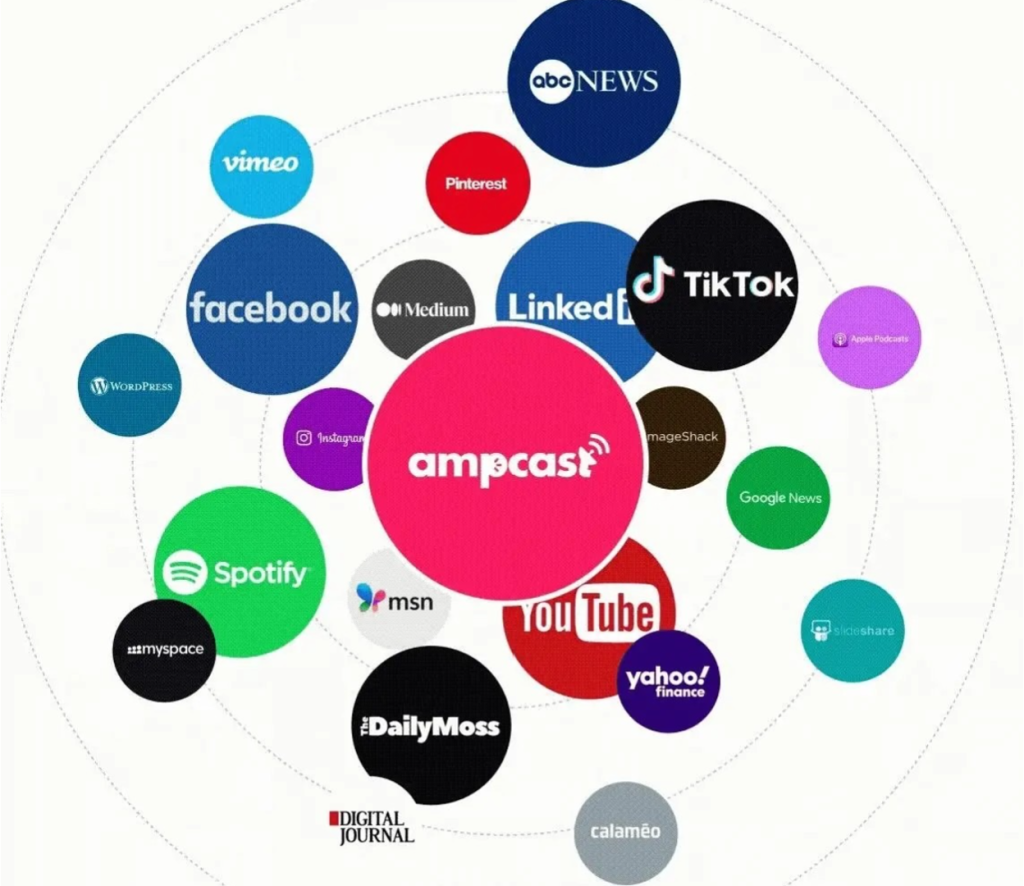
Getting your GTINs, product feeds, and schema markup right is the foundation – and it only pays off when customers can actually find your products. At AmpiFire, we help ecommerce brands drive organic traffic by creating and distributing 8 unique content formats (news articles, blog posts, interview podcasts, longer informational videos, reels/shorts, infographics, flipbooks/slideshows, and social posts) across 300+ high-authority platforms, including Google News, YouTube, Spotify, and major news sites.
This approach helps your products show up wherever buyers are researching, building credibility and generating organic traffic that compounds over time.
Frequently Asked Questions (FAQs)
Do I need a GTIN if I only sell through my own Shopify store?
Technically, no, but adding GTINs enables Google Shopping listings and rich results. If you use Google Ads or want organic Shopping visibility, a GTIN is strongly recommended.
Can I transfer a GTIN from one product to another?
No. Once a GTIN is assigned to a product, it remains permanently assigned. Reassigning GTINs causes catalog conflicts on marketplaces and confuses supply chain data.
What happens if I buy cheap barcodes from a reseller instead of buying them from GS1?
Reseller barcodes are often recycled and registered to another company. Marketplaces verify against GS1’s database, and mismatches result in listing suppression, lost reviews, or account suspension.
Is there a difference between a UPC and a GTIN?
A UPC is a type of GTIN, specifically, GTIN-12, the 12-digit format used in the US and Canada. GTIN is the broader category that includes UPC, EAN, and other formats.
How does AmpiFire help ecommerce brands drive more organic sales?
AmpiFire’s AmpCast AI creates and distributes 8 unique content formats across 300+ high-authority platforms so your products appear everywhere buyers research before purchasing, generating organic traffic and establishing authority across search, social, video, podcasts, news, and AI recommendations.
*Disclaimer: Results may vary based on individual circumstances, business type, and content strategy. The time savings and outcomes mentioned are based on typical user experiences and are not guaranteed. For specific pricing and service details, please visit AmpiFire.
Author
Related Posts

Agentic Commerce Protocol for Shopify: Setup & Guide
Learn how to prepare your Shopify store for OpenAI's Agentic Commerce Protocol (ACP). Get AI-driven sales with structured content across…

Agentic Commerce Protocol Setup Guide: How to Get AI-Driven Ecom Sales in 2026
OpenAI and Stripe’s Agentic Commerce Protocol (ACP) changes how 800 million people discover and buy products. Instead of searching Google…

3 Main Types of Business Models: Pros and Cons of Ecommerce, Affiliate & Local Marketing
Are you interested in learning about different types of business models? Consider this breakdown on using ecommerce, affiliate, and local…

How to Tell Your Story with Multimedia: A Comprehensive Guide for Bloggers, Brands & Non-Experts
In this guide, we cover the basics of how to tell your story with multimedia and gain media exposure online.

How to Record a Podcast Remotely: Setup & Strategies
Master remote podcast recording using professional setup, techniques, and proven strategies for broadcast-quality results.


Podcast Ads & Sponsorship Benefits: Examples for Ecom Brands
In this guide, learn how to craft effective podcast ads and optimize content for enhanced ecom brand visibility with podcast…